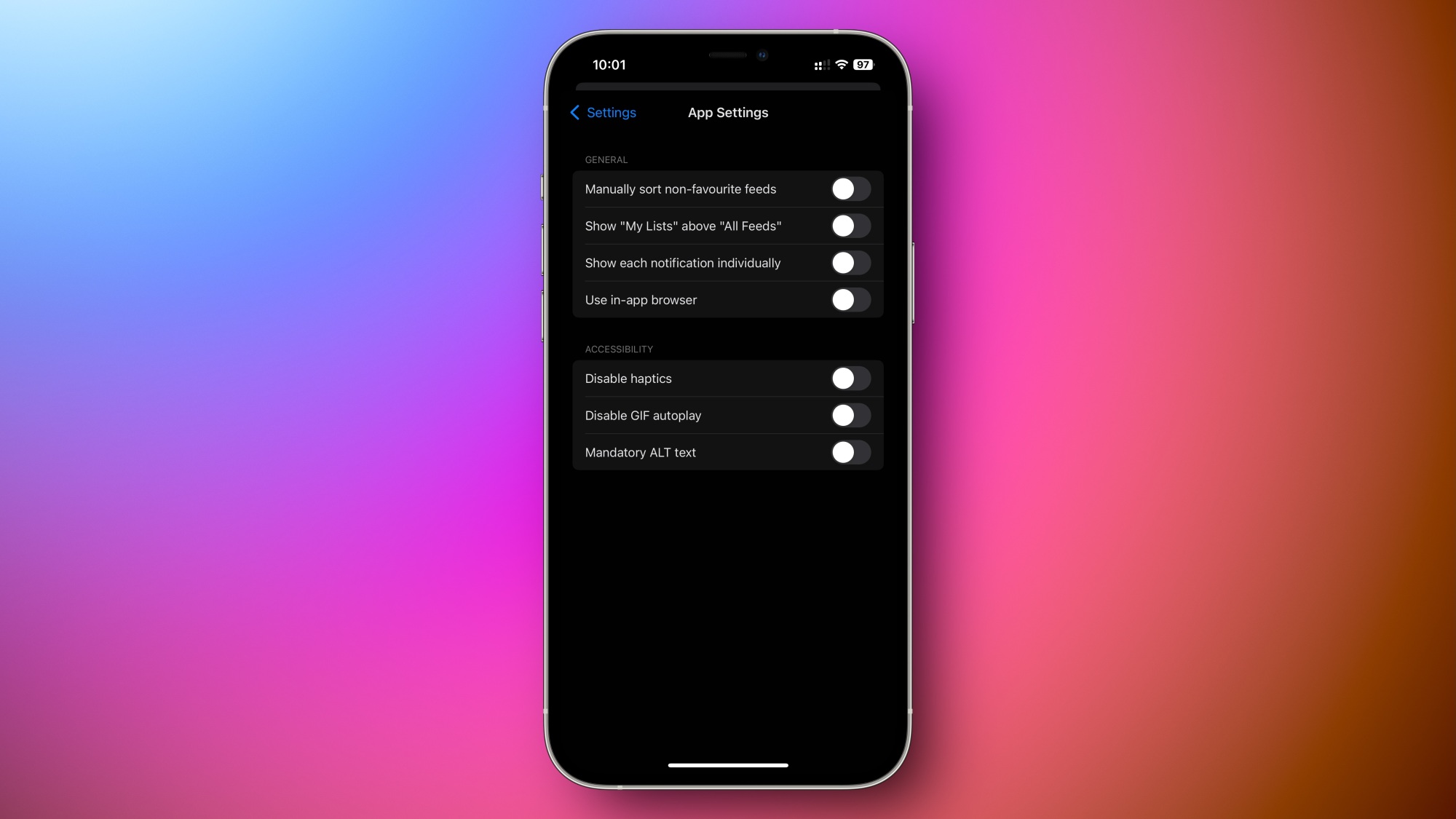
Bluesky has been steadily adding more essential functionalities like drafts, improving its competitiveness with other microblogging services such as X and Threads. Fortunately, dark mode is a feature that Bluesky has made available for a while, enabling users to transition to a darker color palette to alleviate eye fatigue from bright displays while scrolling through their feed.
Here’s how you can activate Bluesky’s dark mode.
**Total Time**: 30 seconds
**What You Need**: Bluesky; smartphone or desktop PC
**Step 1**: Launch Bluesky.
**Step 2**: If you’re using desktop, click on “Settings” in the left-hand navigation bar. If you’re on mobile, tap the “≡” in the top left corner to bring up the navigation bar, then tap “Settings.”
**Step 3**: Click or tap on “Appearance.”
**Step 4**: Click or tap on “Dark” to enable Bluesky’s dark mode.
**Step 5**: Once it’s active, you can adjust how dark you want Bluesky to be by selecting either “Dim” or “Dark.”
To deactivate Bluesky’s dark mode, simply repeat the same steps up to step four, then choose “Light.” Alternatively, you can select “System” to have Bluesky’s color mode align with the general preferences you’ve set for your phone’s operating system.